
Highlight a word or phrase with the options to add before and after texts. The module comes with an impressive collection of hover effects for the highlighted text. This is a great way to grab the attention of the viewers!
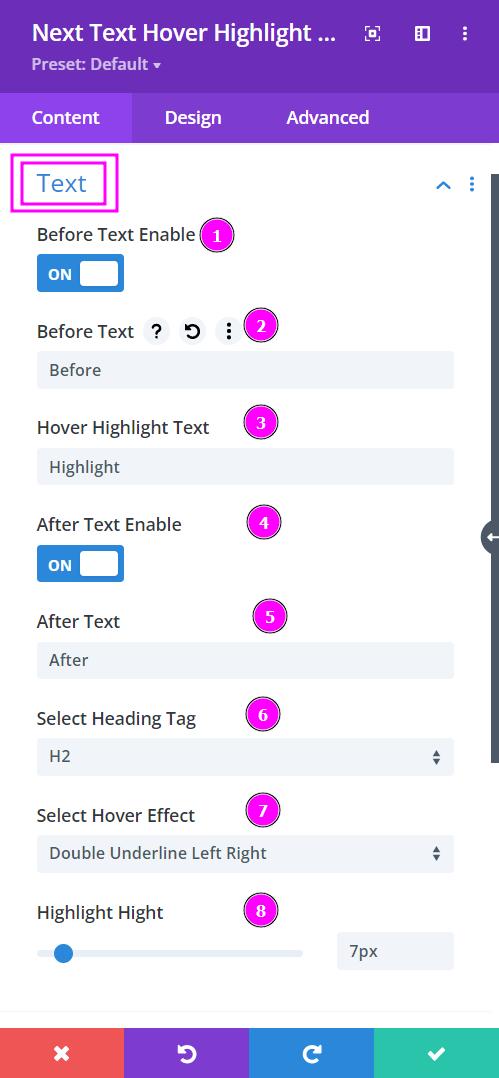
Content → Text
- Before Text Enable - enable before text switch to include before the highlighted text.
- Before Text - type a relevant text before the highlighted text in the field provided.
- Hover Highlight Text - Type the text you want to highlight.
- After Text Enable - enable after text switch to include text after the highlighted content.
- After Text - add the after text in the field provided.
- Select Heading Tag - select the heading tag from the list.
- Select Hover Effect - from the 50+ hover effects available here, select the one you like best.
- Highlight Height - configure the height of the highlight from the text.
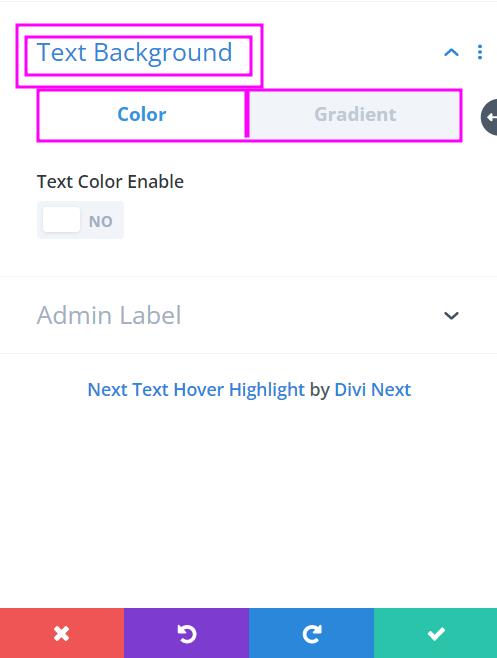
Content → Text Background
Pick between fill color or gradient to use as the background color for the text.
Text Color Enable - enable this to open color settings
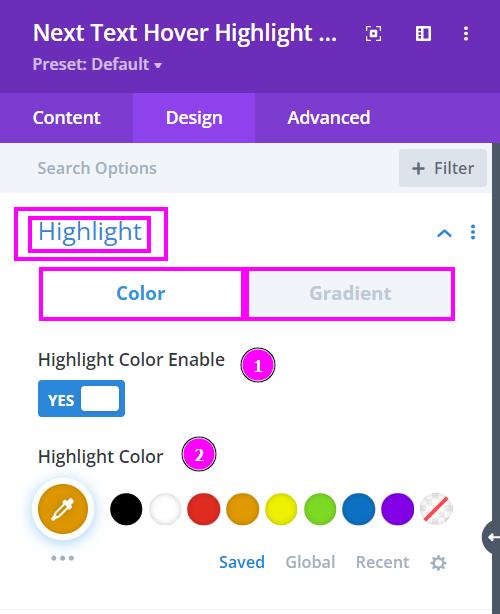
Design → Highlight
- Highlight Color Enable - enable the switch to view the highlight color settings.
- Highlight Color - select a color for the highlight by using the pointer or simply apply the hex code, and get the precise color required for the content.
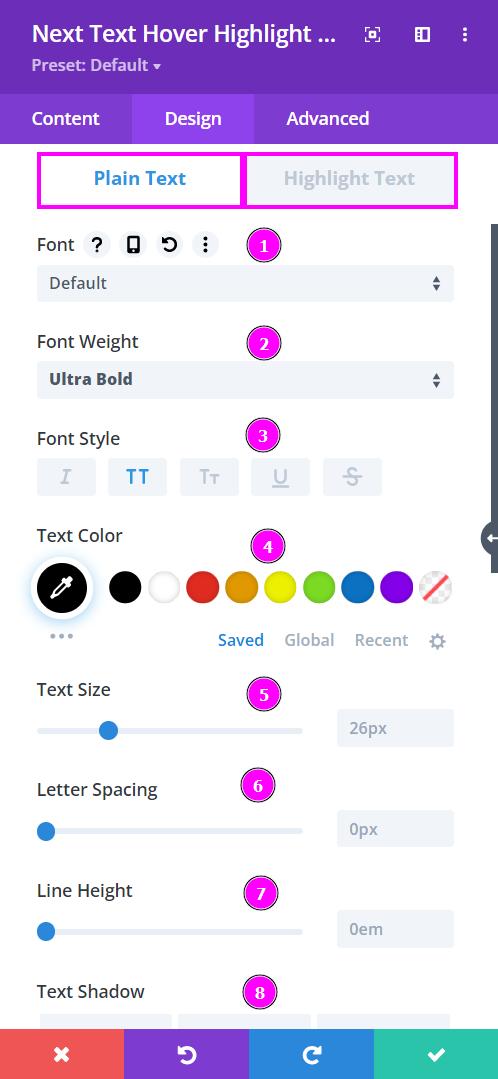
Design tab → Fonts
- Font - pick a font or upload a custom font for the content
- Font Weight - select the weight of the font to stylize the text
- Font Style - choose a creative style for the font
- Text Color - select a color for the font by using the pointer or simply apply the hex code, and get the precise color required for the content
- Text Size - adjust the size of the text using the slider
- Letter Spacing - adjust the spacing between the letters for an easier read
- Line Height - modify the height between the lines to give a bit of breathing space and a neater look to the content
- Text Shadow - choose any of the following styles of shadows for your text
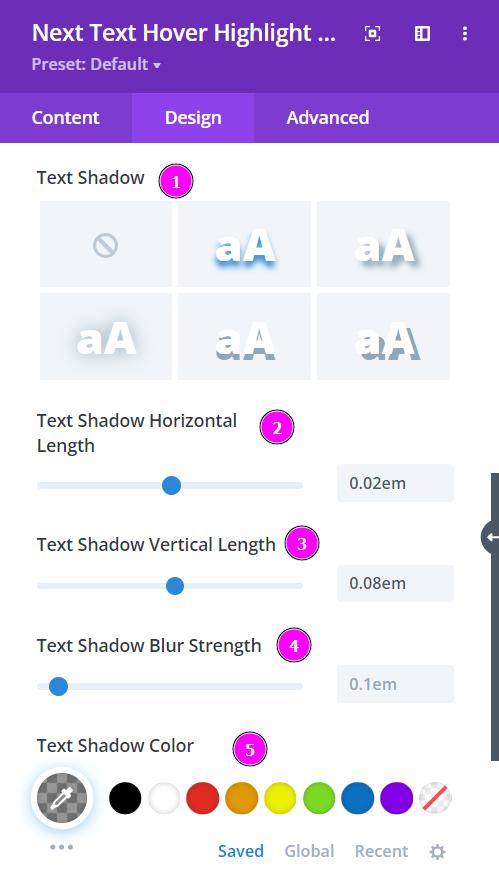
Design → Text Shadow
- Text Shadow - select a shadow for the text
- Text Shadow Horizontal Length - move the shadow in a horizontal direction
- Text Shadow Vertical Length - move the shadow in a vertical direction
- Text Shadow Blur Strength - adjust the blur strength using the slider
- Text Shadow Color - select a color for the shadow
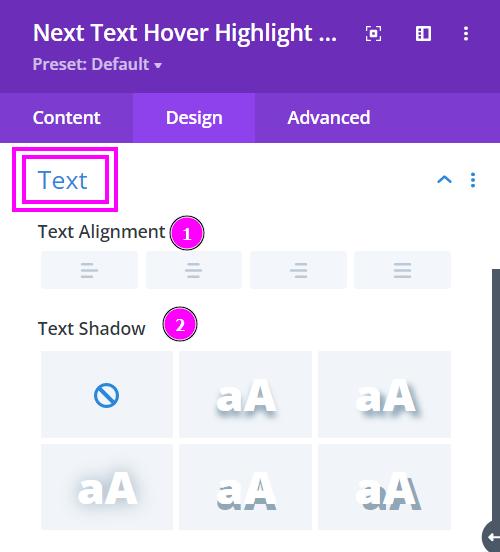
Design → Text
- Text Alignment - set up the text position either to the left, center, or right
- Text Shadow - add shadow to the text
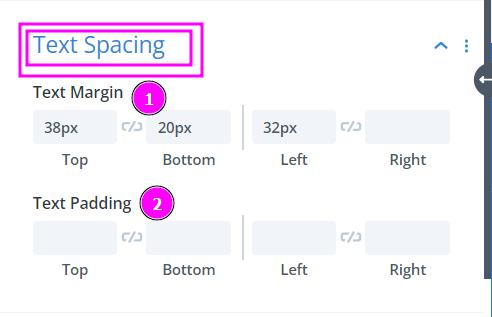
Design → Text Spacing
- Text Margin - adjust the marginal spacing for the text using the tools provided here
- Text Padding - adjust the padding space for the text using the tools provided here
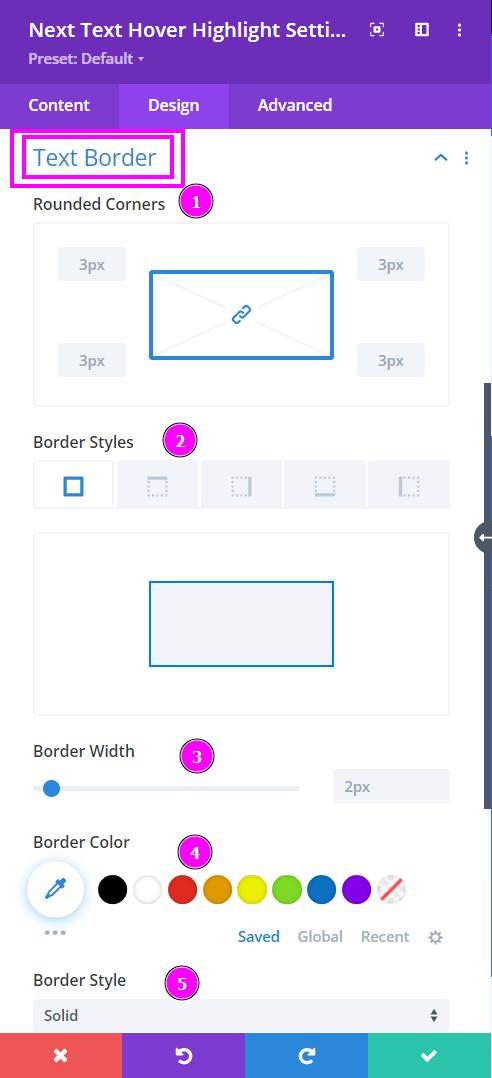
Design → Text Border
- Rounded Corners - adjust the four corners to add rounded corners.
- Border Styles - add a border to the text on any side or on all four sides.
- Border Width - adjust the width of the borders using the slider
- Border Color - select a color for the border using the pointer or you can paste the hex code to get the exact color required for your text
- Border Style - select a particular style of the border from the premade border styles